
Syntax and switches
The command syntax is netstat [-a] [-b] [-e] [-f] [-n] [-o] [-p proto] [-r] [-s] [-t] [-v] [interval] A brief description of the switches is given in Table I below. Some switches are only in certain Windows versions, as noted in the table..Note that switches for Netstat use the dash symbol "-" rather than the slash "/".
| Switch | Description |
|---|---|
| -a | Displays all connections and listening ports |
| -b | Displays the executable involved in creating each connection or listening port. (Added in XP SP2.) |
| -e | Displays Ethernet statistics |
| -f | Displays Fully Qualified Domain Names for foreign addresses. (In Windows Vista/7 only) |
| -n | Displays addresses and port numbers in numerical form |
| -o | Displays the owning process ID associated with each connection |
| -p proto | Shows connections for the protocol specified by proto; proto may be any of: TCP, UDP, TCPv6, or UDPv6. |
| -r | Displays the routing table |
| -s | Displays per-protocol statistics |
| -t | Displays the current connection offload state, (Windows Vista/7) |
| -v | When used in conjunction with -b, will display sequence of components involved in creating the connection or listening port for all executables. (Windows XP SP2, SP3) |
| [interval] | An integer used to display results multiple times with specified number of seconds between displays. Continues until stopped by command ctrl+c. Default setting is to display once, |
Applications of Netstat
Netstat is one of a number of command-line tools available to check the functioning of a network. (See this page for discussion of other tools.) It provides a way to check if various aspects of TCP/IP are working and what connections are present. In Windows XP SP2, a new switch "-B" was added that allows the actual executable file that has opened a connection to be displayed. This newer capability provides a chance to catch malware that may be phoning home or using your computer in unwanted ways on the Internet. There are various ways that a system administrator might use the assortment of switches but I will give two examples that might be useful to home PC users.
Checking TCP/IP connections
TCP and UDP connections and their IP and port addresses can be seen by entering a command combining two switches:netstat -an An example of the output that is obtained is shown in Figure 1.
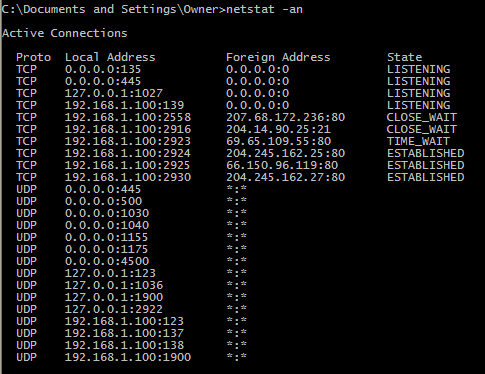 |
The information that is displayed includes the protocol, the local address, the remote (foreign) address, and the connection state. Note that the various IP addresses include port information as well. An explanation of the different connection states is given in Table II>
| State | Description |
|---|---|
| CLOSED | Indicates that the server has received an ACK signal from the client and the connection is closed |
| CLOSE_WAIT | Indicates that the server has received the first FIN signal from the client and the connection is in the process of being closed |
| ESTABLISHED | Indicates that the server received the SYN signal from the client and the session is established |
| FIN_WAIT_1 | Indicates that the connection is still active but not currently being used |
| FIN_WAIT_2 | Indicates that the client just received acknowledgment of the first FIN signal from the server |
| LAST_ACK | Indicates that the server is in the process of sending its own FIN signal |
| LISTENING | Indicates that the server is ready to accept a connection |
| SYN_RECEIVED | Indicates that the server just received a SYN signal from the client |
| SYN_SEND | Indicates that this particular connection is open and active |
| TIME_WAIT | Indicates that the client recognizes the connection as still active but not currently being used |
Checking for malware by looking at which programs initiate connections
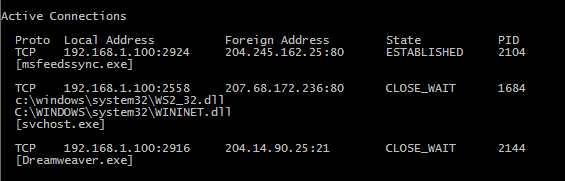
To find out which programs are making connections with the outside world, we can use the command netstat -b (Note that for Windows Vista/7, this particular switch requires that the command prompt have elevated privileges.) Actually, it is better to check over a period of time and we can add a number that sets the command to run at fixed intervals. Also, it is best to create a written record of the connections that are made over some period of time. The command can then be written netstat -b 5 >> C:\connections.txt Note that as written, this command will run with five-second intervals until stopped by entering "Ctrl+c", which is a general command to exit. (Some reports say that this can be fairly CPU intensive so it may cause a slower, single-core machine to run sluggishly. It was not noticeable on my dual-core machine.) A simple example of the type of output is shown in Figure 2. Note that the Process ID (PID) is given when using Windows XP. In Windows Vista/7, the switch "o' has to be added to display PIDs. This command can be combined with other tools such as Task Manager to analyze what executable files and processes are active and are trying to make Internet connections.
 |
Windows XP batch program to check connections and terminate automatically
The previous example of using "netstat -b" to check connections at intervals has the disadvantage that it requires manual termination. It is also possible to use a batch file that runs a specified number of times with a given time interval and then terminates automatically. In Windows XP we can make use of a command from the Windows 2003 Server Tools called "Sleep". A possible batch file is: @echo off This particular example does 100 iterations of the netstat command at 30 second intervals and writes the results to a file C:\connections.txt. By using different combinations of the switches in Table I, the type of output can be varied
echo Checking connections
for /L %%X in (1,1,100) do (netstat -b >> C:\connections.txt)&&(sleep 5)
Batch program to check connections in Windows Vista and Windows 7
Windows Vista and Windows 7 do not require installing the "Sleep" file. A command " timeout" has been added to these operating systems that serves a similar purpose. A possible batch file for Windows Vista/7 is:
@echo off
echo Checking connections

for /L %%X in (1,1,100) do (netstat -b >> "%USERPROFILE%\connections.txt")&&

((timeout /t 5 /nobreak)>nul)
This batch file has to be run with administrator privileges.